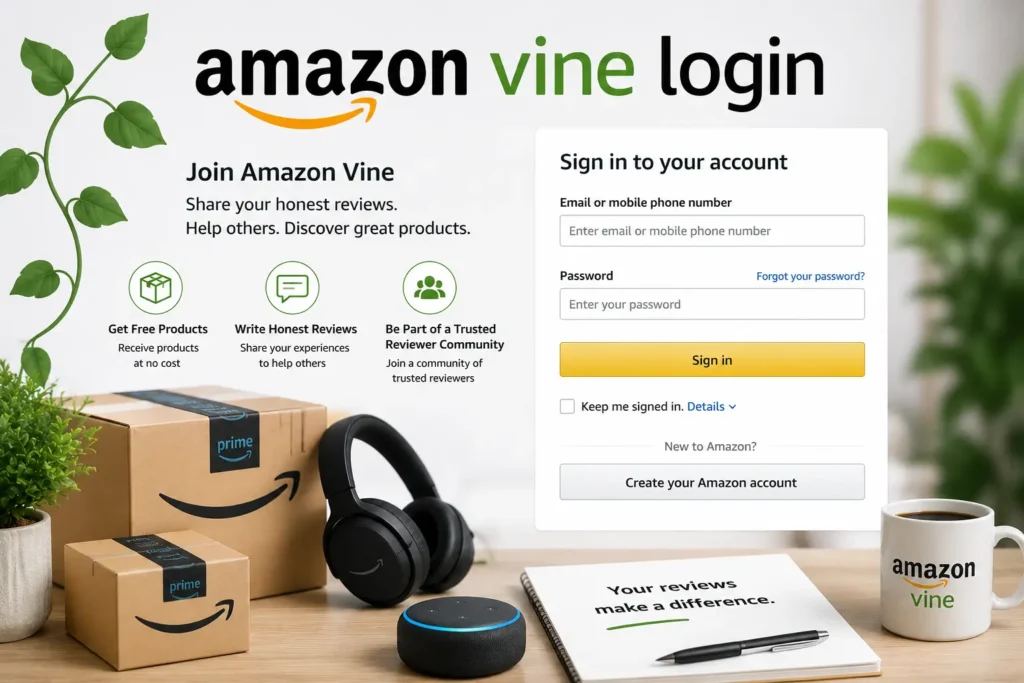

You searched for Amazon Vine login. Maybe you just got an invitation. Maybe your login is not working. Or maybe you are just trying to understand how this whole program works.
Either way, you are in the right place.
Amazon Vine is one of the most talked-about reviewer programs on the internet. But logging in is not as simple as it looks. There is no public sign-up page. No separate Vine username. And if you are using the wrong account, you will hit a wall every single time.
This guide covers everything. How to log in step by step. What to do when things go wrong. And how to make the most of your Vine account once you are inside.
Let us get started.
What Is Amazon Vine and Who Can Access It?
Amazon Vine is an invitation-only product review program that has been running since 2007. It now operates in 12 countries, including the United States, the UK, Canada, Germany, France, Japan, India, and more.
Here is how it works in simple terms.
Amazon selects a small group of trusted reviewers called Vine Voices. These reviewers receive products from enrolled sellers completely free. In return, they write honest and detailed reviews. Those reviews help other shoppers make better buying decisions.
For sellers, it is a way to build a review history for new products. For reviewers, it is a chance to test products and share honest feedback.
But here is the key part. You cannot apply to become a Vine Voice. Amazon invites you based on its own internal algorithm. The factors include:
- Quality and usefulness of your past reviews
- Consistent and balanced star ratings
- Long-term account activity on Amazon
- Helpful votes from other Amazon shoppers
High review volume alone is not enough. Amazon looks at quality, not just quantity. If you write vague, short, or unhelpful reviews, you are unlikely to receive an invitation.
Invitations arrive by email. Amazon sends you a direct link to activate your Vine account. If you have not received that email, you cannot access the Vine dashboard. There is no workaround.
For sellers, access works differently. Vine is managed through Amazon Seller Central. Eligible sellers must have a Professional Selling Account, active Brand Registry enrollment, and products fulfilled through FBA that meet specific listing requirements.
At Smart Home Fix, we cover technology topics that real US users actually need help with. Amazon Vine login is one of the most searched topics in this space, so we put together this complete guide to help you navigate it from start to finish.
How to Complete Amazon Vine Login Step by Step
The most important thing to understand first. There is no separate Amazon Vine login page. You do not create a new account. You do not use a different email or password.
Amazon Vine uses your regular Amazon account credentials. The same email and password you use to shop on Amazon.
Here is the step-by-step process for reviewers.
Step 1: Go to the Amazon website.
Open your browser and go to the Amazon website for your region. For US users, that is amazon.com. Make sure you are on the correct regional site. Your Vine invitation is tied to one specific marketplace.
Step 2: Sign in with your Amazon account.
Click the “Hello, Sign in” button at the top of the page. Enter the email address or phone number connected to the Amazon account that received the Vine invitation. Then enter your password and click Sign In.
Step 3: Complete two-step verification if prompted.
If your account has two-step verification enabled, Amazon will ask you to verify your identity. You will receive a code by text, email, or authenticator app. Enter the code to continue.
Step 4: Access the Amazon Vine portal.
Once signed in, the fastest way to reach the Vine dashboard is by clicking the direct link in your invitation email. You can also visit vine.amazon.com directly in your browser. If your account is approved, the dashboard will load.
Step 5: Accept the program terms on the first visit.
First-time users will see the Amazon Vine Participation Agreement. Read it carefully. It covers your review obligations, submission deadlines, and tax responsibilities. Accept the terms to move forward.
Step 6: Start browsing the Vine dashboard.
Once inside, you will see available products organized into different sections. You can browse items, request products, track your orders, and monitor your review submission deadlines.
For sellers, the Amazon Vine login path is different. Go to sellercentral.amazon.com and sign in with your professional seller account. Then hover over the Advertising tab in the top navigation and select Vine from the dropdown. The seller Vine dashboard shows your enrolled products, reviewer activity, and available ASIN slots.
Amazon Vine Login Issues and How to Fix Them
Amazon Vine login problems are the most common frustration users face with Amazon Vine. The good news is that most issues have simple fixes. Here is a full breakdown.
Forgot Password or Email
This is one of the most common issues. You remember getting a Vine invitation, but cannot remember which email address you used.
Here is what to do.
First, check all your email inboxes. Search for emails from amazon.com with subject lines related to Vine, reviews, or invitations. Vine invitation emails usually arrive from a noreply Amazon address.
If you cannot find the invitation, try logging in with every email address you own. Amazon Vine access is tied to one specific account. Using the wrong email means the Vine dashboard will not appear.
If you have genuinely forgotten your password, click the “Forgot your password?” link on the Amazon login page. Amazon will send a reset link to your registered email. Follow the instructions to create a new password.
Once reset, use that same account to try accessing the Vine portal again.
Account Locked or Suspended
Amazon can lock or suspend accounts for several reasons. Unusual Amazon Vine login activity, policy violations, or inactivity can all trigger account restrictions.
If your account is locked, Amazon usually sends an email explaining the reason and what steps to take. Check your inbox carefully including spam folders.
To unlock a locked account, you will need to contact Amazon customer support directly. Go to the Amazon help center and look for the contact options. You may need to verify your identity before Amazon restores full access.
If your Vine account specifically has been suspended, the reason is often related to review activity. Possible causes include:
- Not meeting the review completion rate requirement
- Reviews that violate Amazon community guidelines
- Account flagged for suspicious activity
- Long period of inactivity in the Vine program
Contact Amazon Vine support and explain your situation. Be clear, polite, and provide your account information. Recovery is not guaranteed but worth trying.
Two-Step Verification Problems
Amazon strongly recommends two-step verification for account security. But it can sometimes cause Amazon Vine login headaches.
The most common problem is not receiving the verification code. This can happen because:
- Your phone number has changed
- You removed or reset your authenticator app
- SMS delivery is delayed by your carrier
- You are in a location with poor signal
Here is how to fix it.
First, wait a minute and request the code again. Sometimes there is a short delay. If that does not work, try an alternative verification method if you have one set up. Amazon allows backup methods like a backup phone number, email code, or authenticator app.
If none of your backup methods work, go to Amazon account settings and update your two-step verification details. You will need access to at least one verified method to make changes.
If you are completely locked out of two-step verification, contact Amazon support. They have an account recovery process for verified account owners.
Browser and Device Errors
Sometimes the Amazon Vine login works fine but the Vine dashboard does not load properly. This is usually a browser or device issue, not an account problem.
Try these fixes in order.
Clear your browser cache and cookies: Old cached data can cause Amazon Vine login sessions to conflict. Clear your cache, close the browser, and try again.
Open an incognito or private browsing window: This bypasses cached data and browser extensions. If the Vine dashboard loads in incognito mode, a browser extension or corrupted cache is causing the problem.
Try a different browser: If you normally use Chrome, try Firefox or Edge instead. Some browser versions handle Amazon’s portal better than others.
Switch to a desktop computer: Mobile browsers sometimes display layout issues on the Amazon Vine portal. The desktop version is more reliable for accessing all features, including review drafting and program terms.
Disable browser extensions: Ad blockers and privacy extensions can interfere with Amazon’s authentication. Temporarily disable them and try logging in again.
Check if Amazon has an outage: Occasionally, Amazon’s servers experience technical issues. If nothing works and you cannot find any account-related reason, check Amazon’s status page or social media for outage reports.
Amazon Vine Dashboard: What You See After Login
Once you successfully complete the Amazon Vine login and accept the program terms, you will see your Vine dashboard. Here is what to expect inside.
The dashboard is divided into several sections.
Available for You: This is a personalized list of products Amazon recommends based on your review history and preferences. These are often the best items to request because they match your interests.
Available for All: This section shows products open to all Vine Voices in the program. The selection changes regularly as new products are enrolled by sellers.
Your Orders: This shows all the products you have requested through Vine. You can track shipment status and see which reviews are still pending submission.
Review Deadlines: Vine Voices are expected to review products within a certain time frame. The dashboard shows your pending reviews and any approaching deadlines. Missing deadlines repeatedly can affect your membership status.
Membership Tier: Amazon introduced two membership tiers in 2023. Standard members and Gold tier members. Gold tier members receive access to higher-value products and a larger daily request allowance. Your tier is based on your review quality and completion rate.
Review Insightfulness Score: Amazon introduced this scoring system in June 2025. It grades your reviews as Poor, Fair, Good, or Excellent. This score now factors into your tier evaluation. Maintaining a Good or Excellent score is important for keeping Gold tier status.
The dashboard is clean and straightforward. But keep in mind that the desktop version is easier to navigate than mobile. If you are reviewing terms or writing longer reviews, a desktop or laptop gives you the best experience.
Tips to Keep Your Amazon Vine Account Safe
Your Amazon Vine account is valuable. Losing access means losing the ability to participate in the program. Here are simple tips to keep your account secure.
Use a strong and unique password: Do not reuse passwords from other sites. A strong password includes a mix of letters, numbers, and symbols. Use a password manager if you struggle to remember unique passwords.
Enable two-step verification: Yes, it can cause Amazon Vine login issues if not set up correctly. But it also protects your account from unauthorized access. Enable it and keep your backup methods up to date.
Keep your recovery email and phone number current: If you change your phone number or email address, update them in your Amazon account settings immediately. These are your lifelines if you ever lose access.
Never share your Amazon login details: Amazon will never ask for your password by phone or email. If you receive a message asking for your credentials, it is a phishing attempt. Ignore it and report it to Amazon.
Watch out for fake Vine websites: Some scam websites claim to offer an Amazon Vine membership or invite you to sign up. These are not real. Amazon Vine invitations only come directly from Amazon via email. Never enter your Amazon password on a third-party site.
Stay active in the program: Amazon monitors review activity. Long periods of inactivity or low completion rates can result in membership being paused or revoked. Stay engaged and submit reviews before deadlines.
Amazon Vine Login on Mobile vs Desktop
Many users wonder whether they can use Amazon Vine on their phone. The short answer is yes. But there are differences worth knowing.
Desktop access is the recommended option for most Vine activities. Here is why.
Reading the program terms and participation agreement is much easier on a larger screen. Writing detailed reviews is more comfortable with a full keyboard. The dashboard layout displays all sections clearly without scrolling issues. Drafting and editing reviews feel more natural.
Mobile access is convenient for quick tasks. You can log in through the Amazon mobile app or a mobile browser. It works well for browsing available products and tracking orders. But some users report layout quirks in the Vine portal on smaller screens.
If you use the mobile app, make sure you are signed into the correct Amazon account. The app sometimes stays logged into a default account, which may not be the Vine-invited account.
For the best overall experience, use a desktop or laptop computer for your main Vine activities. Use your mobile when you need to check your orders or browse products on the go.
Common Amazon Vine Login Mistakes to Avoid
Even experienced Vine Voices make mistakes. Here are the most common ones and how to avoid them.
Using the wrong Amazon account: This is the top reason people cannot access the Vine dashboard. Your invitation is tied to one specific account. Always log in with the exact email that received the Vine invitation.
Not reading the participation agreement: The program terms cover important details about review deadlines, content guidelines, and tax obligations. Skipping this leads to surprises later.
Missing review deadlines: Every product you request through Vine comes with a review submission deadline. Missing deadlines repeatedly puts your membership at risk. Track your pending reviews regularly.
Writing low-quality reviews: Amazon now scores your reviews using the Review Insightfulness Score. Short, vague, or unhelpful reviews will lower your score. This can affect your tier and eventually your standing in the program.
Requesting too many products at once: There are daily and total request limits. Requesting products you are not genuinely interested in reviewing is a bad strategy. Focus on items you will actually test and review thoroughly.
Ignoring tax obligations: In the United States, products received through Vine may be considered taxable income. Amazon issues tax forms when the total value of received products exceeds IRS thresholds. Consult a tax professional if you are unsure how this applies to you.
Falling for fake Vine sign-up websites: If a website asks you to pay or sign up for Amazon Vine access, it is a scam. Vine membership is free for reviewers and invitation-only. You cannot buy your way in.
Final Thoughts on Amazon Vine Login
Amazon Vine is a genuinely useful program. For reviewers, it offers access to real products and a platform to share honest feedback. For sellers, it provides a structured way to build early review credibility.
But the Amazon Vine login process trips up a lot of users. The key things to remember are simple. Use the exact Amazon account that received the invitation. There is no separate Vine password. Desktop access gives you the most reliable experience. And most login issues come down to the wrong account, a browser problem, or a two-step verification issue.
Work through the fixes in this guide systematically. Most problems resolve quickly once you identify the real cause.
At Smart Home Fix, we publish guides like this to help US users navigate technology tools and platforms with confidence. Whether you are troubleshooting an Amazon Vine login issue or just trying to understand how Amazon Vine works, we aim to give you clear, reliable information that actually helps.
If you found this guide useful, explore more technology and home improvement content on Smart Home Fix. We cover the topics that matter most to homeowners and everyday tech users across the USA.
Frequently Asked Questions
Where do I go for the Amazon Vine login?
Use your regular Amazon account. Go to vine.amazon.com or click the link in your invitation email. There is no separate Vine login page.
Why is my Amazon Vine login not working?
The most common reasons are using the wrong account, browser cache issues, or two-step verification problems. Try clearing your cache and logging in with the invited email.
Can I access Amazon Vine on my phone?
Yes. You can use the Amazon app or a mobile browser, but the desktop version offers a smoother and more complete Vine dashboard experience.
What happens if my Amazon Vine account is suspended?
Amazon will usually email you the reason. Contact Amazon Vine support directly and follow their instructions to attempt account recovery.
How do I know if I am still in the Amazon Vine program?
Log in to your Amazon account and check if the Vine dashboard is still visible at vine.amazon.com. If it redirects or shows an error, your access may have ended.